Check out my new installtion document:
External resource on ardanlabs.com: https://www.ardanlabs.com/blog/2016/05/installing-go-and-your-workspace.html
I removed the sections about gocode and GDB. These are not necessary any longer. I also added links for more editors.
Windows
This is a great post by Wade Wegner for installing Go on your Windows Machine:
External resource on wadewegner.com: http://www.wadewegner.com/2014/12/easy-go-programming-setup-for-windows/
Mac OS X
The following instructions will guide you through installing Go on your Mac.
Step 1: Download Go
External resource on golang.org: http://golang.org/dl/
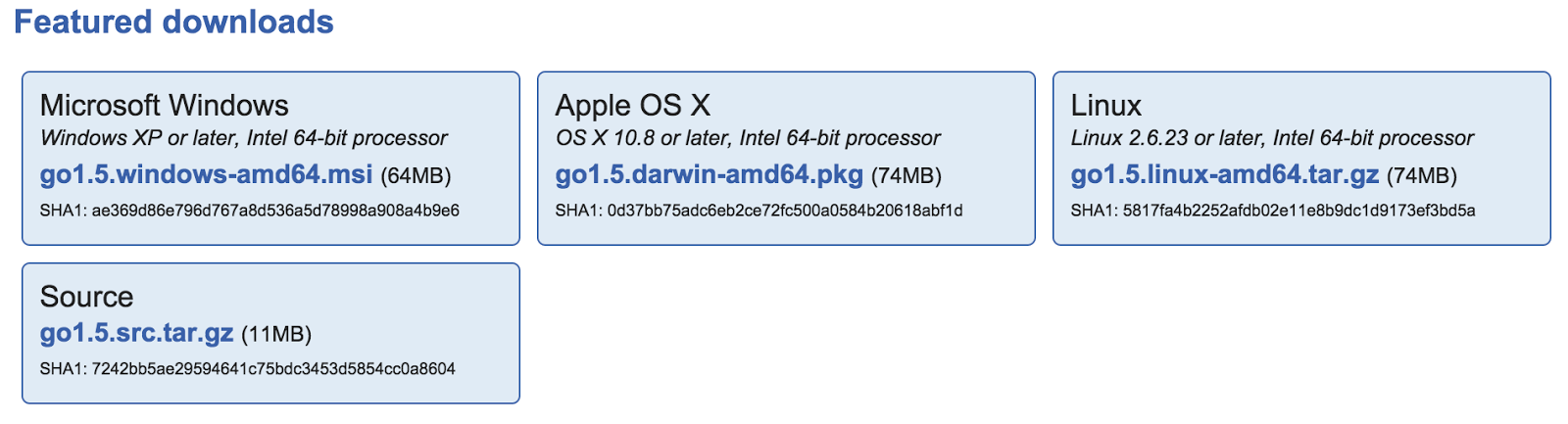
This will show you all the latest builds for the different operating systems. Darwin is the name for the Mac OS. Download the installer package for your OS version and architecture.
Once downloaded go to your Downloads folder in Finder and double click on the pkg file to start the installation. The installation will put Go in /usr/local/go. Once the installation is complete you will want to check the installation.
Note: Moving forward we will be using both Terminal and Finder. It helps to be able to see all the files in Finder. Finder by default will not show you everything that is on your hard drive.
To show all files in Finder:
Open a Terminal session. If you don't know where the Terminal program is go to your Applications folder in Finder and then Utilities. Click on Terminal and a bash shell command window will open.
Execute the following commands in Terminal.
defaults write com.apple.finder AppleShowAllFiles TRUE
killall Finder
killall Finder
The killall Finder will reload the Finder program and now you can see all the files.
Step 2: Check Installation
Open a Terminal session and type the following commandgo version
You should see the following if everything installed correctly
go version go1.5 darwin/amd64
Now type the which command to verify the installation is in /usr/local/go
which go
You should see that Go can be found in /usr/local/go/bin
/usr/local/go/bin/go
Step 3: Set Your GOPATH
You need a single place to store and work on your Go projects. Create a folder called projects from inside your home folder:cd $HOME
mkdir projects
cd projects
mkdir src
mkdir bin
cd projects
mkdir src
mkdir bin
Now set projects as your GOPATH. Open the .bash_profile file from the $HOME folder and add the following items to the end.
nano .bash_profile
export GOPATH="$HOME/projects"
export PATH=$PATH:$GOPATH/bin
Then exit the Terminal App and open a new Terminal App. Check that the Go environment now has your new GOPATH.
go env
You should see all the Go related environment variables including GOPATH. Here are some of them:
GOARCH="amd64"
GOHOSTARCH="amd64"
GOHOSTOS="darwin"
GOOS="darwin"
GOPATH="/Users/you/projects"
GOROOT="/usr/local/go"
GOTOOLDIR="/usr/local/go/pkg/tool/darwin_amd64"
Step 4: Get, Build and Install Basic Packages
These are Go packages you may want:// gocode is used by many editors to provide intellisense
go get github.com/nsf/gocode
// goimports is something you should run when saving code to fill in import paths
go get golang.org/x/tools/cmd/goimports
// gorename is used by many editors to provide identifier rename support
go get golang.org/x/tools/cmd/gorename
// oracle is a tool that help with code navigation and search
go get golang.org/x/tools/cmd/oracle
// golint should be run after every build to check your code
go get github.com/golang/lint/golint
go get github.com/nsf/gocode
// goimports is something you should run when saving code to fill in import paths
go get golang.org/x/tools/cmd/goimports
// gorename is used by many editors to provide identifier rename support
go get golang.org/x/tools/cmd/gorename
// oracle is a tool that help with code navigation and search
go get golang.org/x/tools/cmd/oracle
// golint should be run after every build to check your code
go get github.com/golang/lint/golint
Step 5: Debugger
Using GDB is really not an option. If you would like to experiment with Delve, here is a link:External resource on github.com: https://github.com/derekparker/delve
Step 6: Install Editor
Sublime
External resource on sublimetext.com: http://www.sublimetext.com/
DisposaBoy wrote this plugin for Sublime
External resource on github.com: https://github.com/DisposaBoy/GoSublime
Mark Wolfe wrote this post:
External resource on wolfe.id.au: http://www.wolfe.id.au/2015/03/05/using-sublime-text-for-go-development/
VIM
External resource on vim.org: http://www.vim.org/download.php
Victor Farazdagi wrote this post on installing Vim for Go:
External resource on farazdagi.com: http://farazdagi.com/blog/2015/vim-as-golang-ide/
Atom
External resource on atom.io: https://atom.io/
Joe Fitzgerald wrote this plugin for Atom
External resource on github.com: https://github.com/joefitzgerald/go-plus
LiteIDE
External resource on sourceforge.net: http://sourceforge.net/projects/liteide/files/
Emacs
This is the configuration Guillaume Charmes uses:
External resource on github.com: https://github.com/creack/dotfiles
Helpful Links
Here are other links to web pages that will be very helpful:External resource on golang.org: http://golang.org/
External resource on github.com: https://github.com/golang/go/wiki
External resource on blog.golang.org: http://blog.golang.org/
External resource on youtube.com: http://www.youtube.com/user/gocoding
External resource on dave.cheney.net: http://dave.cheney.net/
External resource on gophervids.appspot.com: http://gophervids.appspot.com/
You must watch these videos on Go Concurrency Patterns
External resource on youtube.com: http://www.youtube.com/watch?v=QDDwwePbDtw
External resource on youtube.com: http://www.youtube.com/watch?v=f6kdp27TYZs